
All Categories
- Aesthetic Presets
- Cinematic Presets
- Portraits Presets
- Bright & Airy Presets
- Wedding Presets
- Travel Presets
- Film Presets
- Vintage Presets
- Beginners Presets
- Black & White Presets
- Food Presets
- Instagram Presets
- Mobile Presets
- Moody Presets
- Nature Presets
- Product Presets
- Professional Presets
- Real Estate Presets
- Sport Presets
- Summer Presets
- Wildlife Presets
- Winter Presets
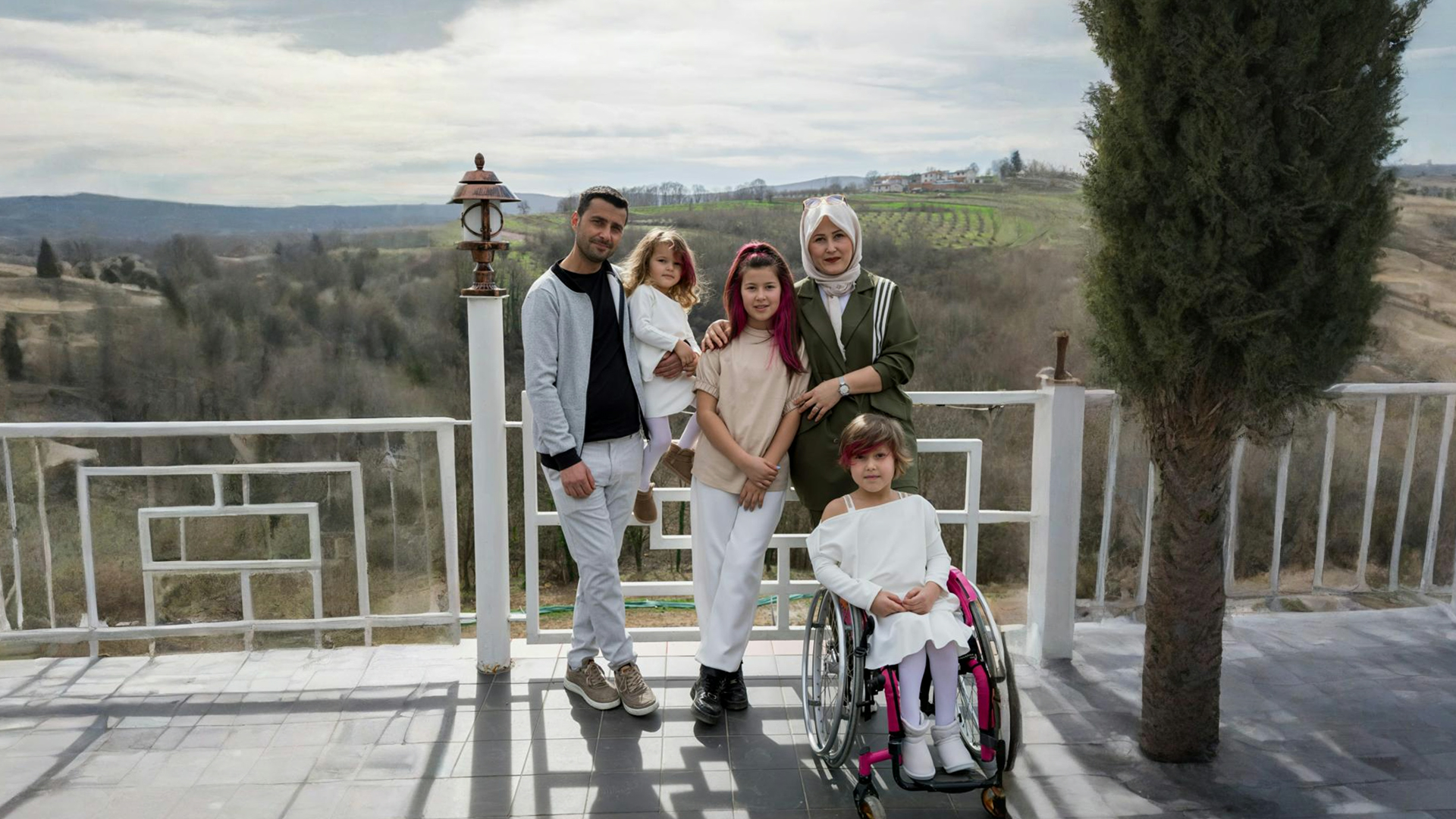
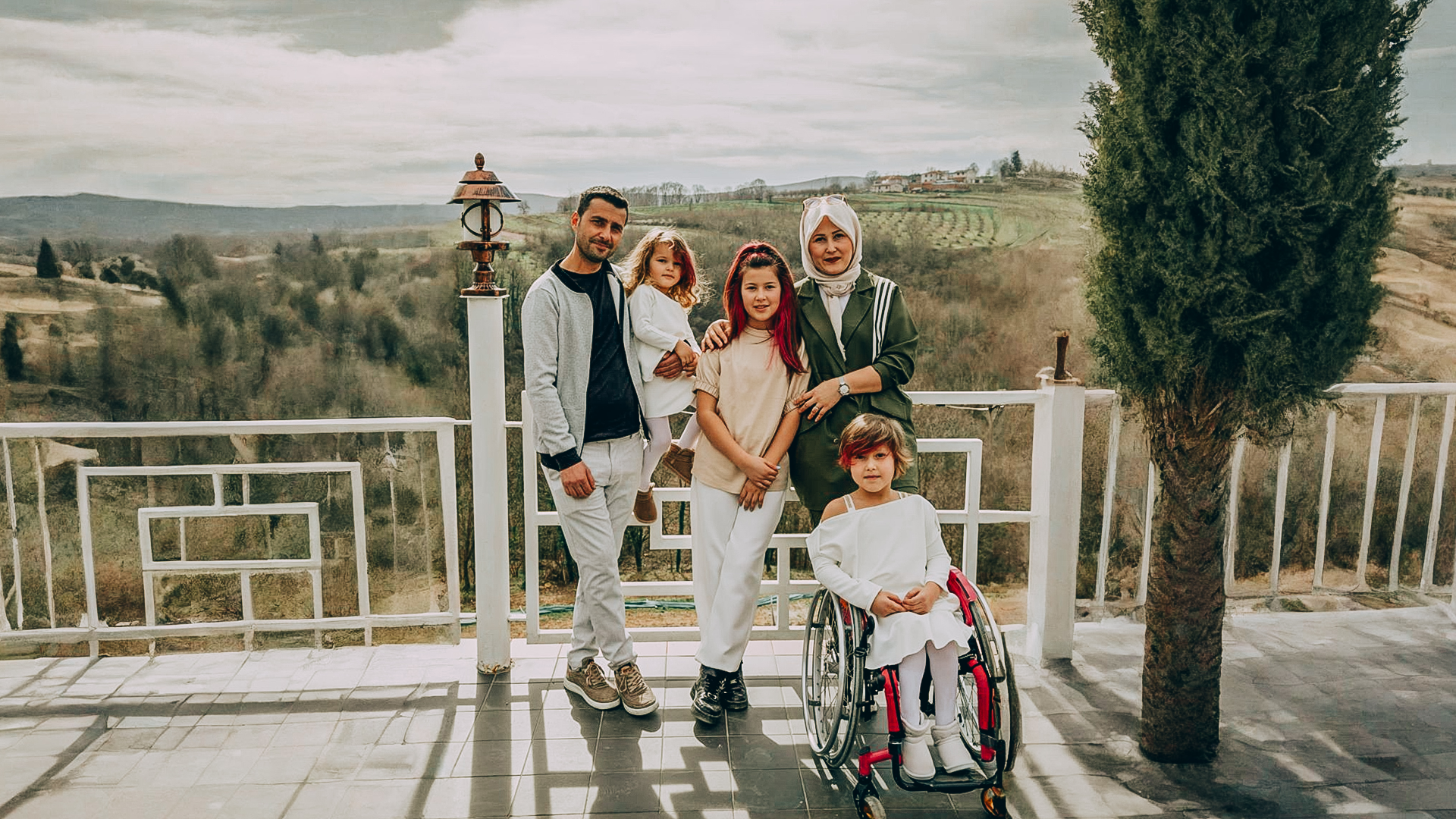
free lightroom presets for portraits
Family group portrait Presets
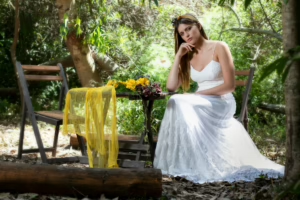
Family Group Portrait Presets to add warmth, balance and true tones to your precious family images. These free Lightroom presets for portraits are located to bring every face into perfect clarity, while maintaining that soft and airbrushed skin toning! Great for use indoor & outdoor, they enhance all the colors and provide a fantastic silky smooth finished edit that us professional photographers go nuts for.

Post Title :
free lightroom presets for portraits
Presets Name :
Family group portrait Presets
Brand :
File Type :
DNG , .XMP
Compatibility :
Mobile, Windows, Mac
Price :
Free To Download
How to Use
Family group portrait Presets
on Mobile ( iOS & Android ):
- Adobe Lightroom Mobile is downloadable from the App Store or Google Play.
- Download and unzip the preset files and you will get DNG on your iOS & Android.
- Open up Lightroom Mobile and either create/sign on an Adobe account.
- Import the DNG preset file: Launch Lightroom > tap three-dot menu > Import Presets > select the preset files on your device.
- Open a photo in Lightroom mobile, then swipe up on the checklist of presets at the bottom to view all associated with your account.
- You can now tap on the imported preset and a TOOLS-based organizer will pop up where you need to paste (“APPLY”) this specific preset on your photo.
- Make any adjustments if necessary and save/export your edited photo.
- How to Use Presets on Windows
- Unzip the downloaded files that will be in XMP format.
- Open the Lightroom desktop application.
- There, click on File > Import Profiles and Presets.
- Choose the folder containing your unzipped preset files.
- Tap Import to import the presets into Lightroom.
- 3> Open a photo, go into the Develop module, you wil see the Presets panel on left side and Look for the preset.
- Swipe the sliders to adjust pieces of the photo, then save off a copy of what you changed.
- How to use Presets on macOS:
- Download and unzip the preset files on your Mac.
- Open and select Lightroom desktop on your Mac.
- File — Import Profiles and Presets…from the top menu.
- Find the preset files on your Mac and open them.
- Press on Import to use presets in Lightroom.
- Open a photo in the Develop module and navigate to the Presets panel, choose a preset.
- Edit the photo to your liking when finished save it or export the edited version.
- Additional tips:
- If you sync your presets with Lightroom CC desktop, they will automatically appear on lightroom mobile when you’re logged in with the same Adobe account.
- This is a workflow option for consistent editing using Lightroom presets, no matter the device. The import differs slightly by platform but the process is simple on all devices. After you have the presets set, the rest is as simple as a click or tap for some big time savings when you’re editing.
free lightroom presets for portraits
Setting | Value | Descriptions
Basic Panel (Tone & Presence)
| Basic | Value | Description |
| Temp | 22 | For a golden tone, it raises the overall temperature of the image. |
| Tint | 0 | Keeps the balance between magenta and green even. |
| Exposure | -0.55 | Darkens the picture a little to keep the highlights. |
| Contrast | -56 | Makes the tone soft and flat by lowering the overall contrast. |
| Highlights | -100 | Gets back all the bright details from areas that were too bright. |
| Shadows | 84 | Brings out hidden details in dark areas by making them brighter. |
| Whites | -30 | Makes bright whites less bright. |
| Blacks | 10 | Makes dark tones a little lighter for a faded, matte look. |
| Texture | 0 | No change in how sharp the fine details are. |
| Clarity | 1 | Adds a little contrast to the midtones. |
| Dehaze | 0 | Keeps the haze levels the same. |
| Vibrance | -25 | Makes colors less bright so the palette is softer. |
| Saturation | 0 | Keeps the overall saturation neutral. |
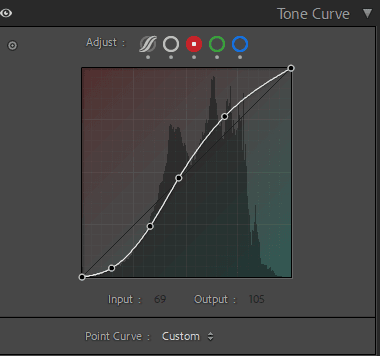
Tone Curve Panel



HSL / Color Mixer Panel
| Color Mixer (HSL) | Value | Description |
| Hue – Red | 15 | Changes reds a little bit to magenta. |
| Hue – Orange | -4 | Gently warms orange tones. |
| Hue – Yellow | 5 | Changes yellows a little bit to green. |
| Hue – Green | 0 | No change to the green tones. |
| Hue – Aqua | 10 | Pushes aqua to the blue-green side. |
| Hue – Blue | -5 | Changes blues to teal. |
| Hue – Purple | 0 | No change in color. |
| Hue – Magenta | 0 | No change in color. |
| Saturation – Red | -20 | Makes red less bright for a softer look. |
| Saturation – Orange | -6 | Makes orange tones a little less bright. |
| Saturation – Yellow | -23 | Moderately mutes yellow tones. |
| Saturation – Green | -53 | Makes green much less bright. |
| Saturation – Aqua | -50 | Makes aqua tones less bright. |
| Saturation – Blue | -49 | Makes the blue less intense for a clearer picture. |
| Saturation – Purple | -47 | Makes purples less harsh. |
| Saturation – Magenta | -30 | Brings down magenta tones to make things more balanced. |
| Luminance – Red | -25 | Makes reds darker for skin tones that are deeper. |
| Luminance – Orange | 3 | Makes oranges a little brighter. |
| Luminance – Yellow | 10 | Adds warmth by lightening yellows. |
| Luminance – Green | 0 | No change in brightness. |
| Luminance – Aqua | 15 | Brightens aqua colors. |
| Luminance – Blue | -25 | Makes blues darker for more depth. |
| Luminance – Purple | 0 | No change. |
| Luminance – Magenta | 10 | Makes magenta tones lighter. |
Effects Panel
| Grain | Value | Description |
| Amount | 0 | No added film grain. |
| Size | 25 | Default (not active because the grain amount is 0). |
| Roughness | 50 | Default level of texture. |
| Effects | Value | Description |
| Post-Crop Vignetting – Amount | -4 | Adds a very soft dark edge to draw attention inward. |
| Midpoint | 60 | Keeps vignette closer to the edges of the image. |
| Roundness | 0 | Shape of a neutral vignette. |
| Feather | 60 | Makes the vignette transition smooth. |
| Highlights | 0 | Does not change how highlight recovery works. |
Calibration Panel
| Calibration | Value | Description |
| Shadows Tint | -4 | Gives shadows a light green color. |
| Red Primary – Hue | 25 | Changes reds to oranges to make things warmer. |
| Red Primary – Saturation | 35 | Makes red more vibrant and warm. |
| Green Primary – Hue | 60 | Moves greens toward aqua to make things cooler. |
| Green Primary – Saturation | -20 | Makes greens softer for a more muted look. |
| Blue Primary – Hue | -5 | Changes blues a little bit toward purple. |
| Blue Primary – Saturation | -5 | Brings down the blue saturation to make things more balanced. |