All Categories
- Aesthetic Presets
- Cinematic Presets
- Portraits Presets
- Bright & Airy Presets
- Wedding Presets
- Travel Presets
- Film Presets
- Vintage Presets
- Beginners Presets
- Black & White Presets
- Food Presets
- Instagram Presets
- Mobile Presets
- Moody Presets
- Nature Presets
- Product Presets
- Professional Presets
- Real Estate Presets
- Sport Presets
- Summer Presets
- Wildlife Presets
- Winter Presets

sports lightroom presets free
Action Sports Presets
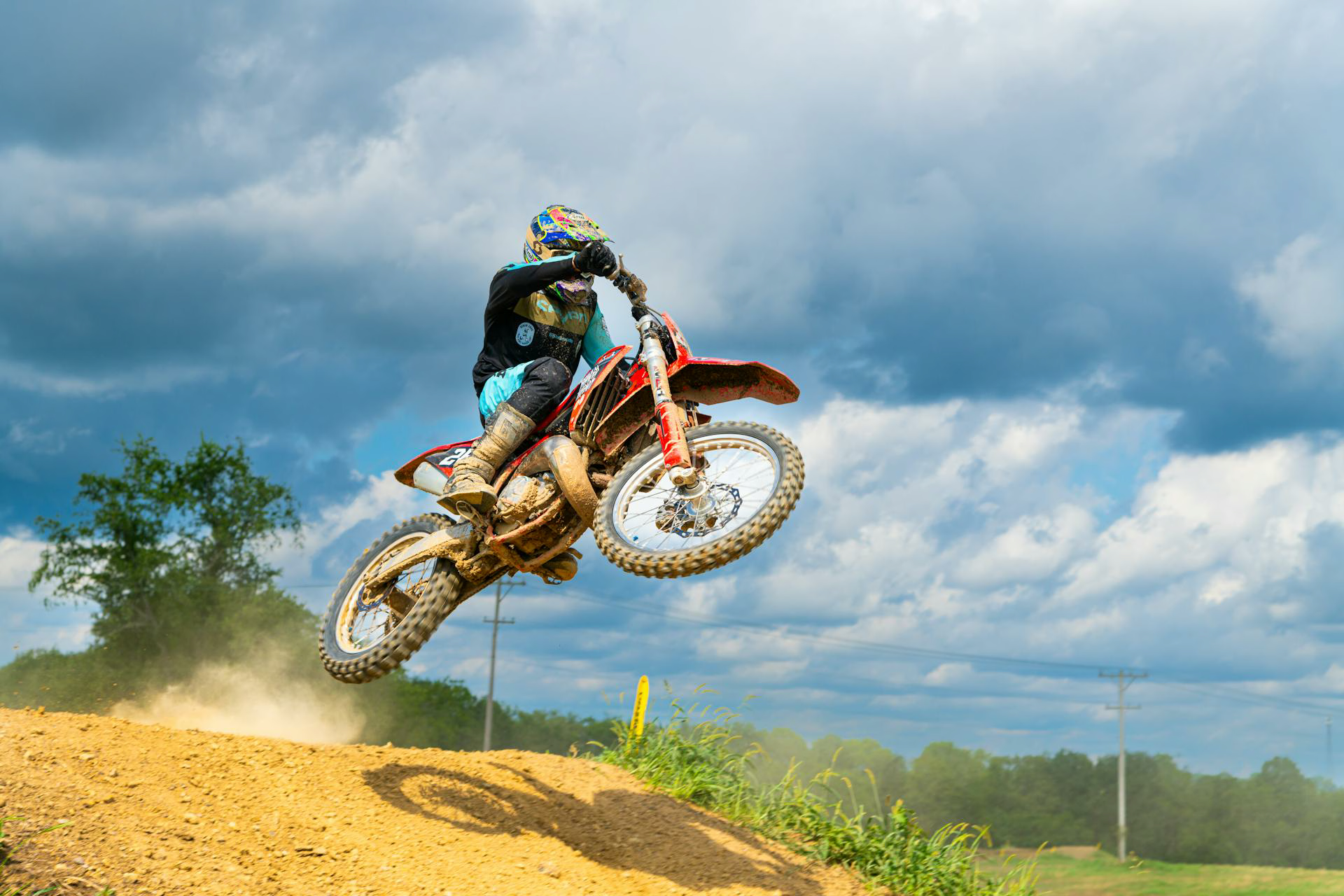
Get high-speed edits with our sports lightroom presets free, made to freeze the action, drama and movement in your photos. These AS ACTION SPORTS PRESETS increase contrast, sharpen details and add dynamism to the tones making your sports photos strong and powerful. Ideal for sport shoot, fans photogrpahers who desire a cinematic, bold feeling.


Post Title :
sports lightroom presets free
Presets Name :
Action Sports Presets
Brand :
File Type :
DNG , .XMP
Compatibility :
Mobile, Windows, Mac
Price :
Free To Download
How to Use
Action Sports Presets
on Mobile ( iOS & Android ):
- Adobe Lightroom Mobile is downloadable from the App Store or Google Play.
- Download and unzip the preset files and you will get DNG on your iOS & Android.
- Open up Lightroom Mobile and either create/sign on an Adobe account.
- Import the DNG preset file: Launch Lightroom > tap three-dot menu > Import Presets > select the preset files on your device.
- Open a photo in Lightroom mobile, then swipe up on the checklist of presets at the bottom to view all associated with your account.
- You can now tap on the imported preset and a TOOLS-based organizer will pop up where you need to paste (“APPLY”) this specific preset on your photo.
- Make any adjustments if necessary and save/export your edited photo.
- How to Use Presets on Windows
- Unzip the downloaded files that will be in XMP format.
- Open the Lightroom desktop application.
- There, click on File > Import Profiles and Presets.
- Choose the folder containing your unzipped preset files.
- Tap Import to import the presets into Lightroom.
- 3> Open a photo, go into the Develop module, you wil see the Presets panel on left side and Look for the preset.
- Swipe the sliders to adjust pieces of the photo, then save off a copy of what you changed.
- How to use Presets on macOS:
- Download and unzip the preset files on your Mac.
- Open and select Lightroom desktop on your Mac.
- File — Import Profiles and Presets…from the top menu.
- Find the preset files on your Mac and open them.
- Press on Import to use presets in Lightroom.
- Open a photo in the Develop module and navigate to the Presets panel, choose a preset.
- Edit the photo to your liking when finished save it or export the edited version.
- Additional tips:
- If you sync your presets with Lightroom CC desktop, they will automatically appear on lightroom mobile when you’re logged in with the same Adobe account.
- This is a workflow option for consistent editing using Lightroom presets, no matter the device. The import differs slightly by platform but the process is simple on all devices. After you have the presets set, the rest is as simple as a click or tap for some big time savings when you’re editing.
sports lightroom presets free
Setting | Value | Descriptions
Basic Panel (Tone & Presence)
| Section | Setting | Value | Description |
| Basic (Profile) | Profile | Artistic 04 | A strong, stylized look is applied, likely affecting color and tone curves significantly. |
| Profile Amount | 70 | The intensity of the “Artistic 04” profile is set to 70%. | |
| Basic | Temp | +11 | Adds warmth (yellow/red) to the image. |
| Tint | -1 | A negligible shift towards green. | |
| Exposure | +0.97 | Significantly brightens the overall image—almost a full stop brighter. | |
| Contrast | +18 | Gives the image a slight boost in definition and punch. | |
| Highlights | -57 | Strongly reduces the brightness of the brightest areas to recover detail. | |
| Shadows | +20 | Slightly brightens the dark areas to reveal hidden detail. | |
| Whites | -36 | Pulls down the white point, ensuring no clipping in pure whites. | |
| Blacks | -17 | Deepens the black point, adding weight and richness to the darkest shadows. | |
| Texture | +7 | Adds a slight hint of detail and definition to mid-frequency areas. | |
| Clarity | +19 | Increases mid-tone contrast for a noticeable sense of depth and sharpness. | |
| Dehaze | +19 | Cleans up the image, making colors slightly more saturated and defined. | |
| Vibrance | +12 | Gently boosts the intensity of already dull colors. | |
| Saturation | +13 | Gently boosts the intensity of all colors uniformly. |
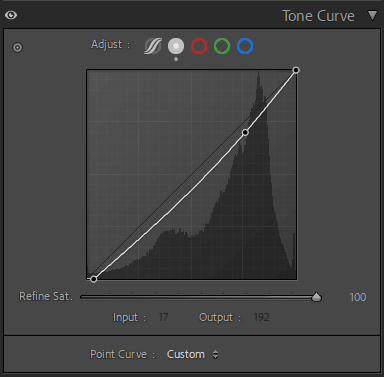
Tone Curve Panel
HSL / Color Mixer Panel
| Section | Setting | Value | Description |
| Color Mixer (HSL – Hue) | Red | -22 | Shifts Reds towards Magenta/Pink. |
| Orange | -29 | Shifts Oranges towards Red/Pink. | |
| Yellow | -71 | Heavily shifts Yellows towards Green. | |
| Green | +46 | Shifts Greens strongly towards Cyan/Aqua. | |
| Aqua | +100 | Max shift of Aqua towards Blue. | |
| Blue | -34 | Shifts Blues towards Purple/Magenta. | |
| Purple, Magenta | +4 | Very slight shift in Purple and Magenta hues. | |
| Color Mixer (HSL – Saturation) | Red | -10 | Slightly dulls the Red color. |
| Orange | -58 | Heavily dulls the Orange color. | |
| Yellow | -13 | Slightly dulls the Yellow color. | |
| Green | -100 | Completely removes the Green color (monochrome greens). | |
| Blue | +39 | Significantly boosts the Blue color saturation. | |
| Aqua | +35 | Significantly boosts the Aqua color saturation. | |
| Purple, Magenta | +10, +6 | Slightly boosts Purple and Magenta colors. | |
| Color Mixer (HSL – Luminance) | Red, Orange, Yellow | +12, +21, +25 | Brightens the warm tones (Reds, Oranges, Yellows). |
| Green | -30 | Strongly darkens the green color. | |
| Aqua, Blue | -8 | Slightly darkens the cool tones (Aqua, Blue). | |
| Purple, Magenta | -4, +4 | Minor adjustments to Purple and Magenta brightness. |
Colour Grading Panel
| Section | Setting | Value | Description |
| Color Grading (Shadows) | Hue: 240, Sat: 10 | Luminance: -15 | Adds a subtle, unsaturated dark blue/purple tone to the deepest shadows. |
| Color Grading (Highlights) | Hue: 200, Sat: 8 | Luminance: -20 | Adds a very subtle, unsaturated light blue/cyan tone to the brightest areas, and darkens the highlights further. |
| Blending | 100 | The colored tones are sharply blended (no overlap between regions). | |
| Balance | 0 | The color effect is equally applied across the image’s tone range. |
Detail Panel
| Section | Setting | Value | Description |
| Detail (Sharpening) | Amount: 12, Radius: 1.0, Detail: 25 | Masking: 0 | Very low, gentle sharpening applied uniformly across the entire image. |
| Detail (Noise Reduction) | Luminance: 16, Color: 20 | Low noise reduction applied to both Luminance (grain) and Color noise. |
Effects Panel
| Section | Setting | Value | Description |
| Effects (Vignetting) | Amount: -19, Feather: 75 | Style: Highlight Priority | Creates a noticeable brightening of the image corners (anti-vignette), with a soft transition, while protecting the brightest parts. |
| Grain | Amount: 0 | No film grain added. |